

AI-generated commit messages
Automatically generate descriptive commit messages for SDK builds using AI, with support for the Studio, CLI, and preview builds.
Our AI commit messages feature automatically generates descriptive commit messages for your SDK builds. AI commit messages use the Conventional Commits format and are derived from the changes you make.
Example AI-generated commit messages:
feat(api): add list and delete methods to users resourcefix(types): make timeout optional in client config
When AI commit messages are disabled, Stainless uses a default message like feat(api): api update.
In either case, you can always override the Stainless-provided values and specify your own commit messages.
Enable AI commit messages
Section titled “Enable AI commit messages”AI commit messages are controlled by an organization-level setting. Once enabled, AI commit messages can be used in the Studio, preview builds, and in the CLI.
- Navigate to your organization settings
- Confirm the correct organization is selected at the top
- Scroll to the AI Features section
- Toggle AI Commit Messages on
This setting takes effect immediately for all new builds
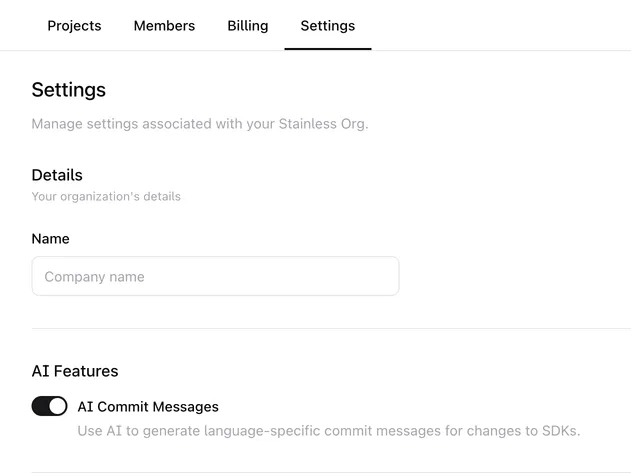
Once enabled:
- Studio branch builds will generate AI commit messages asynchronously
- Preview builds will automatically generate AI commit messages
Where you can use AI commit messages
Section titled “Where you can use AI commit messages”AI commit messages are available in the following places:
- Studio — When building from a branch, AI commit messages are generated automatically. You can preview and edit them in the merge dialog before squashing.
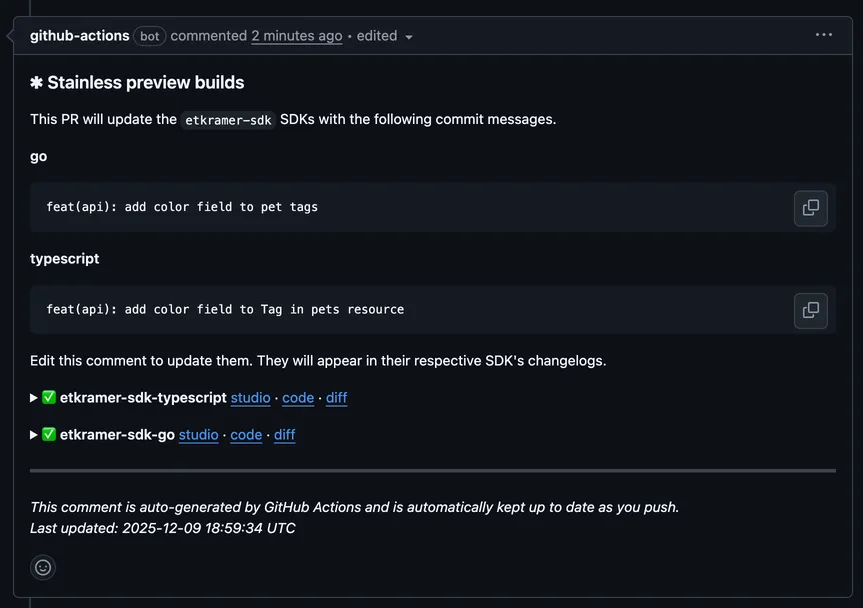
- Preview builds — AI commit messages appear in the comment Stainless adds to your PR. They can be edited before merging by editing the comment.
- CLI — You can enable AI commit messages when using the Stainless CLI with a command line flag.
Use AI commit messages in the Studio
Section titled “Use AI commit messages in the Studio”When working on a branch in the Studio:
- Make changes to your OpenAPI spec or Stainless config
- Click Save & Build SDKs to generate your SDKs
- AI generates commit messages for each SDK in the background
- Click Merge to main when ready
- The merge dialog displays commit message fields for each SDK, pre-filled with AI-generated messages
- Edit any message as needed, then click Squash and merge
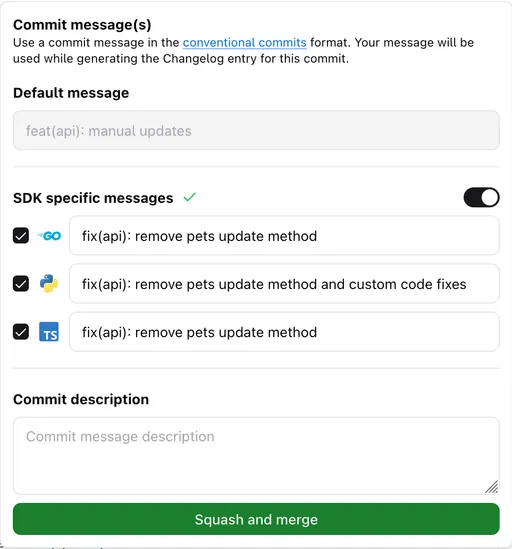
AI commit messages are generated asynchronously. If you don’t want to wait, you can write your own SDK-specific commit messages, or specify a single commit message for all SDKs before the AI commit messages have been generated.
Use AI commit messages with preview builds
Section titled “Use AI commit messages with preview builds”When the organization-level AI commit messages setting is enabled:
- AI commit messages are automatically generated for each SDK in your Preview PR
- The PR comment displays separate commit message fields for each SDK
You can edit any message directly in the PR comment before merging.
No changes to your GitHub Action workflow are required. The feature is controlled entirely by the organization setting.
Use AI commit messages with the CLI
Section titled “Use AI commit messages with the CLI”To enable AI commit messages, add the --enable-ai-commit-messages flag to your command:
str builds create ... --enable-ai-commit-messagesIf you get an error when using the --enable-ai-commit-messages flag…
--enable-ai-commit-messages flag…These troubleshooting steps solve the most common issues:
- AI commit messages are available in version
0.1.0-alpha.69of the Stainless CLI and later- Check the version you have installed:
stl --version - Install the latest version:
brew upgrade stl
- Check the version you have installed:
- The
--enable-ai-commit-messagesflag only works if you have the AI commit messages setting for your org enabled - You can either use AI commit messages or define your own, but not both, so the
--enable-ai-commit-messagesflag cannot be used with the--commit-messageor--target-commit-messagesflags
Still not working? Let us know and we’d be happy to help!
When AI commit messages are enabled via the CLI, Stainless will generate and immediately use rich commit messages instead of default generic commit messages.
To view AI commit messages when using the CLI, review the commit history of your SDK and other target repositories after your CLI builds finish.