Iterate on your SDKs locally with the Stainless Language Server

Min Kim
Product Marketing Lead
Stainless users configure their SDKs with two files: a stainless.yml config and an OpenAPI spec. Together, these files define how your API maps to generated SDKs, from resource structure and method naming to type definitions and pagination behavior. Getting them right is what makes the difference between a generated SDK that feels hand-written and one that feels auto-generated.
Until now, editing these files meant working in the Stainless Studio or pushing changes and waiting for build feedback. That workflow works, but there are some limitations. You make a change, trigger a build, wait for diagnostics, fix an issue, and repeat. For quick iterations on your config or spec, that loop is slower than it needs to be.
Today, we're releasing the Stainless Language Server, which brings the editing capabilities of the Studio directly into your local development environment. If you use VS Code, Cursor, Neovim, Zed, or any editor that supports the Language Server Protocol, you can now get real-time feedback on your Stainless config and OpenAPI spec as you type.
What the Language Server does
The Stainless Language Server understands the relationship between your stainless.yml and your OpenAPI spec. It knows which endpoints map to which resources, which schemas are referenced where, and what valid configuration options look like in context. That understanding powers a set of features that make local editing significantly more productive.
Real-time diagnostics and quick fixes
The language server analyzes your Stainless config and OpenAPI spec in real-time, surfacing errors, warnings, and suggestions directly in your editor. This helps you catch issues before running a build. When a diagnostic does appear, common issues come with an autofix you can apply with one click, and warning-level diagnostics can be suppressed with a single action.
It’s powered by the same diagnostic engine as Studio, so you get identical feedback locally without leaving your editor.
Intelligent completions
When editing your stainless.yml, the language server offers context-aware autocompletion. It suggests valid config keys, endpoint paths, and schema names drawn from your OpenAPI spec. If you're defining a new resource method, it will suggest available endpoints. If you're referencing a schema, it will complete from the schemas defined in your spec.
This is especially useful for large APIs. Instead of switching between your config and a long OpenAPI spec to find the right path or schema name, completions surface the options directly.
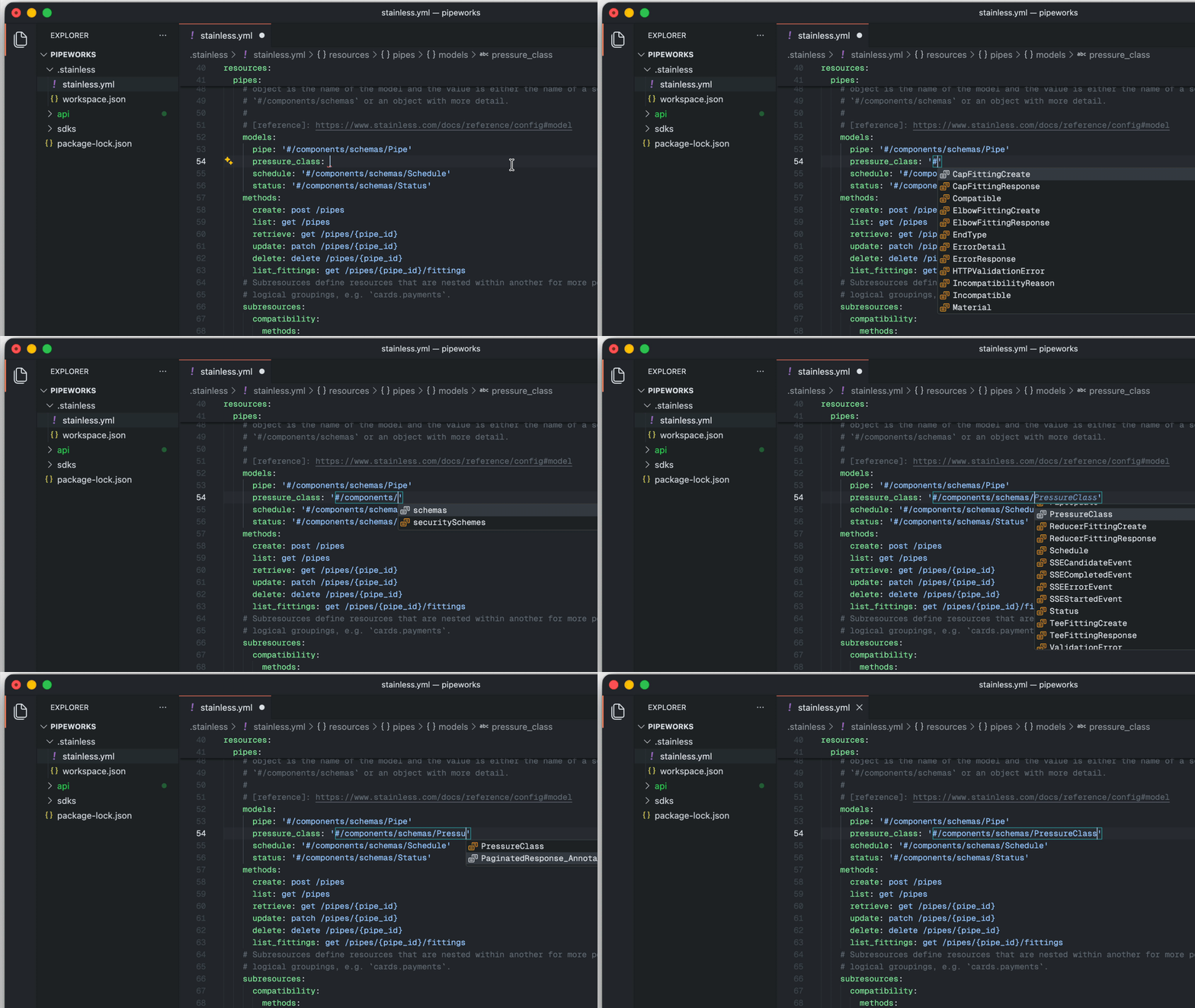
Go to definition and find all references
You can use "Go to definition" to jump from a reference in your Stainless config straight to the corresponding schema, parameter, or endpoint in your OpenAPI spec. Use "Find all references" to see where a particular schema or endpoint is used across both files.
For teams working with specs that have hundreds of endpoints, this navigation alone saves significant time. You don't need to manually search through a large YAML file to find where a schema is defined or where an endpoint is referenced.
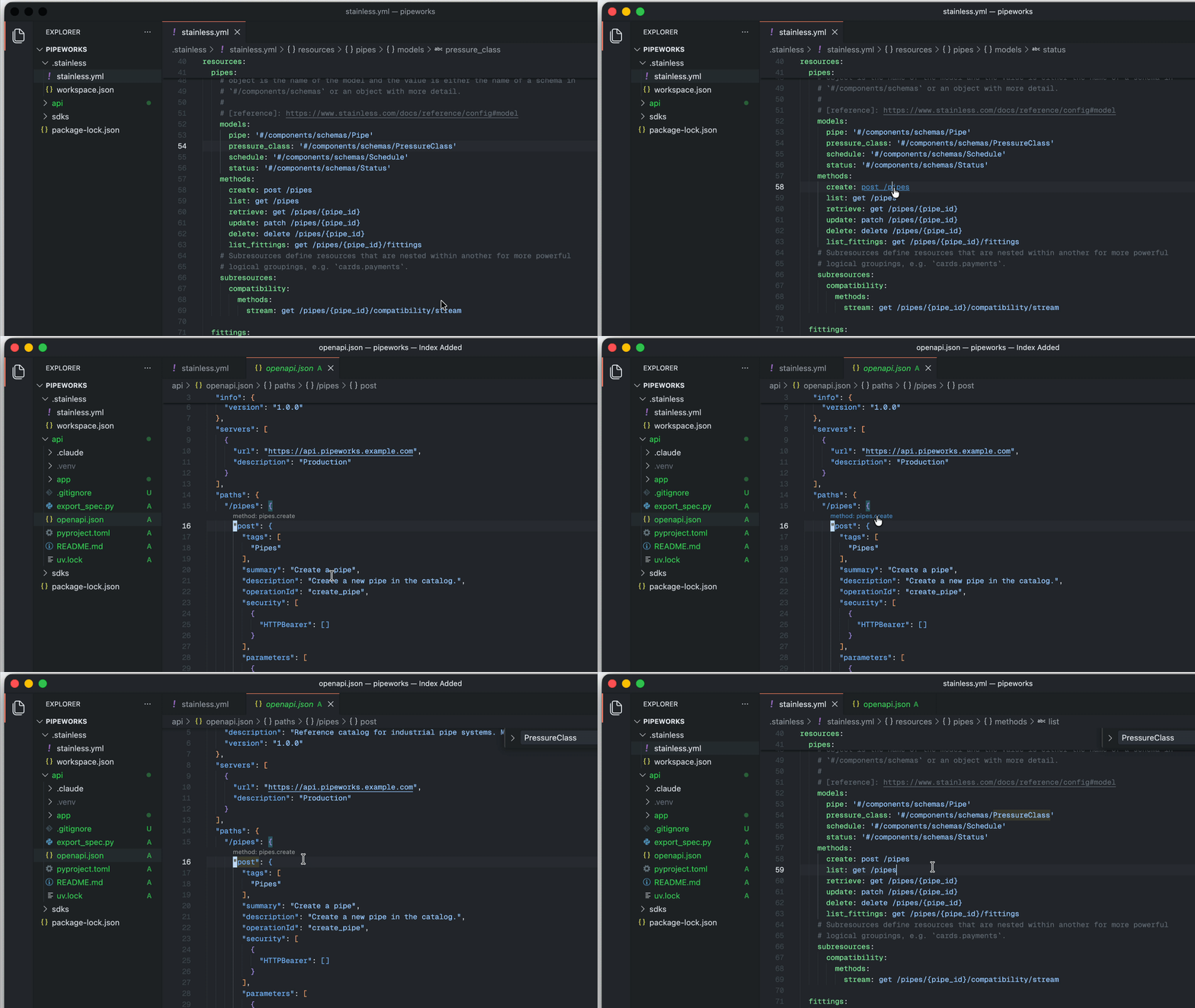
Codelenses in your OpenAPI spec
Codelenses appear inline in your OpenAPI spec, showing which schemas and endpoints are already configured in your Stainless config. This gives you a quick visual overview of your API's SDK coverage without switching files. You can see at a glance which parts of your spec are represented in your SDKs and which aren't.
Live Transformations
If you use Stainless Transforms to reshape your OpenAPI spec, the language server generates and updates your transformed spec in real-time as you edit your config. You can see the effect of each transform immediately, without running a separate build step.
Getting set up
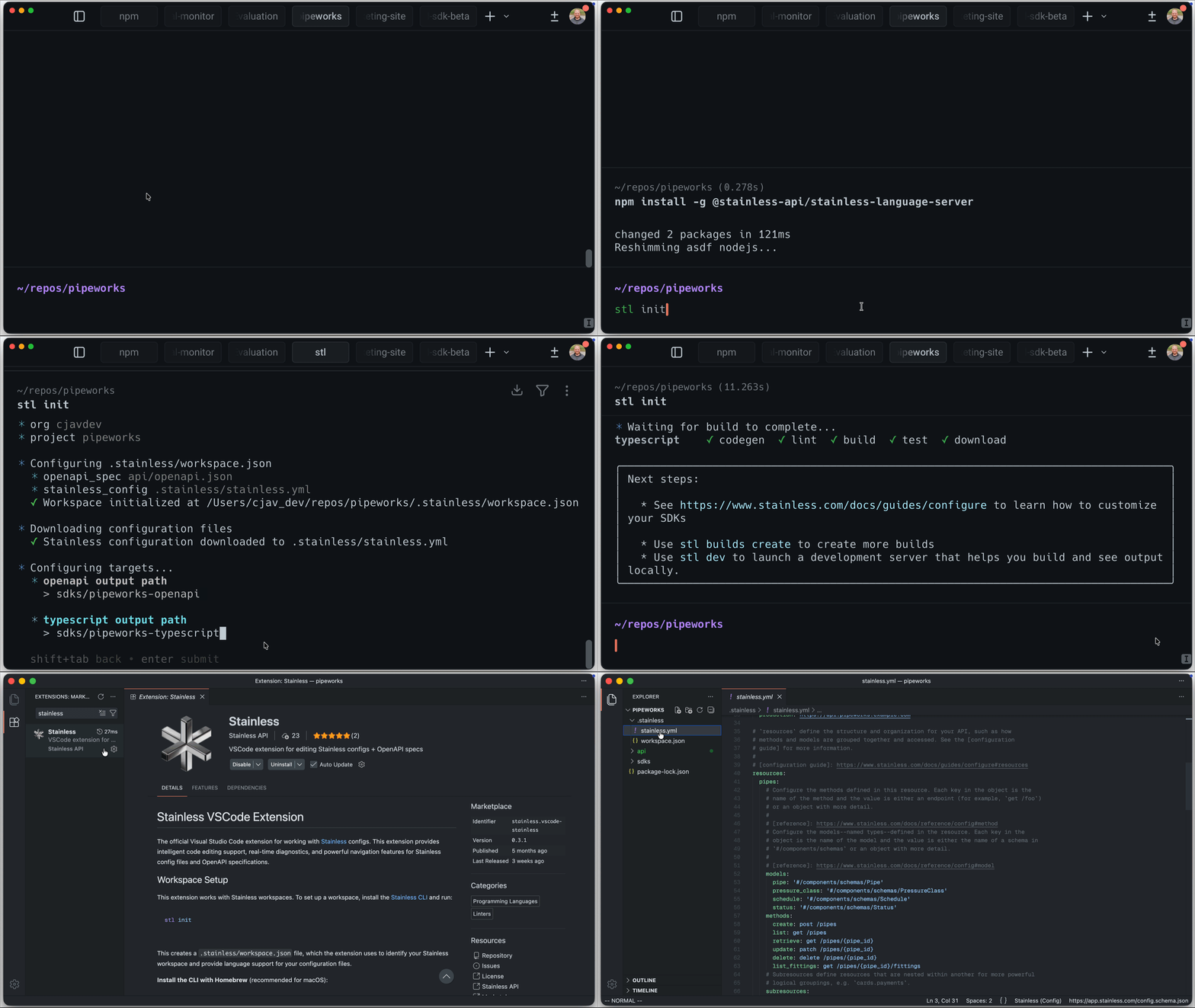
Setup takes a few minutes. Install the Stainless CLI, initialize your workspace, and add the extension for your editor.
Install the CLI:
Initialize your workspace:
This creates a .stainless/workspace.json file that the language server uses to identify your project and locate your config and spec files.
Install the editor extension:
For VS Code and Cursor, search for "Stainless" in the Extensions view and install it. The extension bundles the langauge server, so no separate LSP installation is needed.
For Neovim and other LSP-compatible editors, install the language server package globally via npm:
Then configure your LSP client to run stainless-language-server --stdio. The server activates for YAML and JSON files when it detects .stainless/workspace.json in your project. The setup guide has editor-specific configuration examples.
The local development workflow
With the language server running, the workflow for iterating on your SDK configuration looks like this:
Open your
stainless.ymland OpenAPI spec in your editorEdit your config with completions and inline validation guiding you
See diagnostics in real-time as you type, catching misconfigurations before they reach a build
Use go-to-definition to navigate between your config and spec
Review codelenses to check SDK coverage across your API
When you're satisfied, push your changes to Stainless for a full build
This is the same set of features available in the Stainless Studio, now running locally. For teams that prefer working in their own editor, or that want to use AI coding tools like Claude or Cursor alongside their Stainless config, the language server makes that possible.
Try it out
The Stainless Language Server is available now. Install the VS Code extension or the npm package and check out the documentation for detailed setup instructions. If you run into issues or have feedback, reach out to [email protected].
Originally posted
Feb 12, 2026